

The admin dashboard
Sign in to the admin dashboard, change the schema, rules and hooks with every edit checked as you type, browse the data under your own rules, and roll a change back.
Before you start
Section titled “Before you start”- A running dashboard. The screenshots show a bicycle workshop’s backend,
examples/bike-workshop, which the image carries; the quick start’s stack serves it with no clone. Its records are empty there. The seeded demo, with realistic data, runs from a clone and needs the .NET SDK the repository pins inglobal.json, pluscurlandjq. - An account with a management level. The bootstrap administrator has
admin, whatever the descriptor says.
The dashboard is a client of the Management API and the Data API, never a second way in: every screen does what an agent could do over HTTP, under the same checks.
1. Sign in
Section titled “1. Sign in”Start the quick start’s stack over the workshop, in the directory that holds docker-compose.quickstart.yml and with
ALVO_DEMO_KEY_SECRET and ALVO_ADMIN_PASSWORD exported. The down deletes the database of the descriptor it served
before:
docker compose -f docker-compose.quickstart.yml down --volumesALVO_DESCRIPTOR=/alvo/examples/bike-workshop/bike-workshop.alvo.json \ docker compose -f docker-compose.quickstart.yml up --wait --wait-timeout 90Open http://localhost:8080/admin and sign in as admin@alvo.local with the password you exported:
echo "$ALVO_ADMIN_PASSWORD"For the seeded demo instead, run this in a clone of the repository. It builds the host, starts it on
http://127.0.0.1:5080 over a fresh SQLite file, seeds the workshop and prints the dashboard address, the
administrator’s address and a password for this run:
scripts/demo-admin --no-aiThe dashboard takes an address and a password, never an API key. The first administrator comes from configuration;
everyone else is created on Access, which hands you a one-time set-password link to pass on, because this build
sends no email. Authentication and API keys covers
both. What you may do once signed in is your management level, decided by the descriptor’s access block from your
roles: a viewer reads, a developer also applies and rolls back, an admin also changes access, the people and
the AI connection.
2. Read the overview
Section titled “2. Read the overview”Overview answers “what is this backend”: the applied revision, how the host starts, how many entities, revisions and honoured blocks there are, and the latest configuration change.
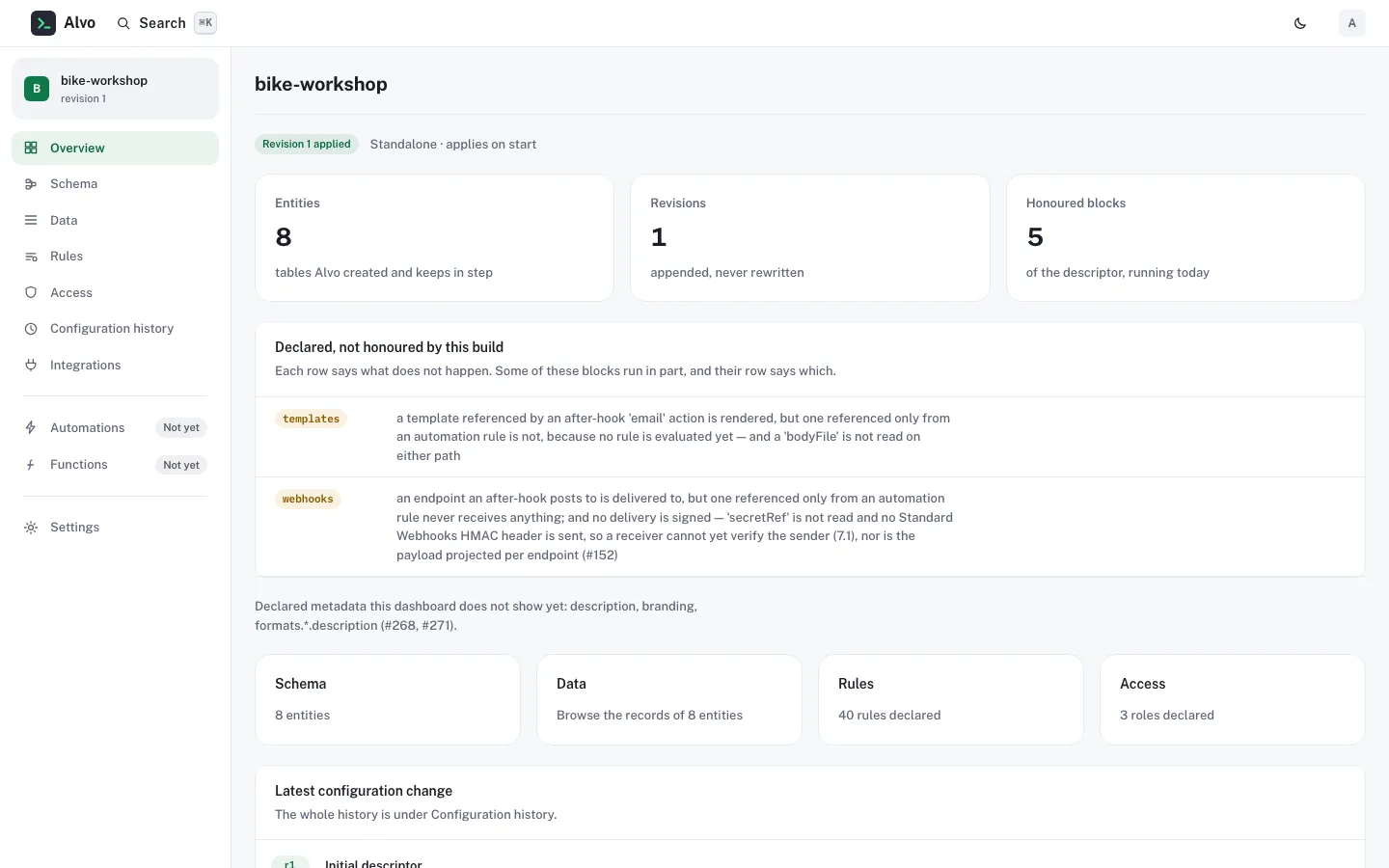
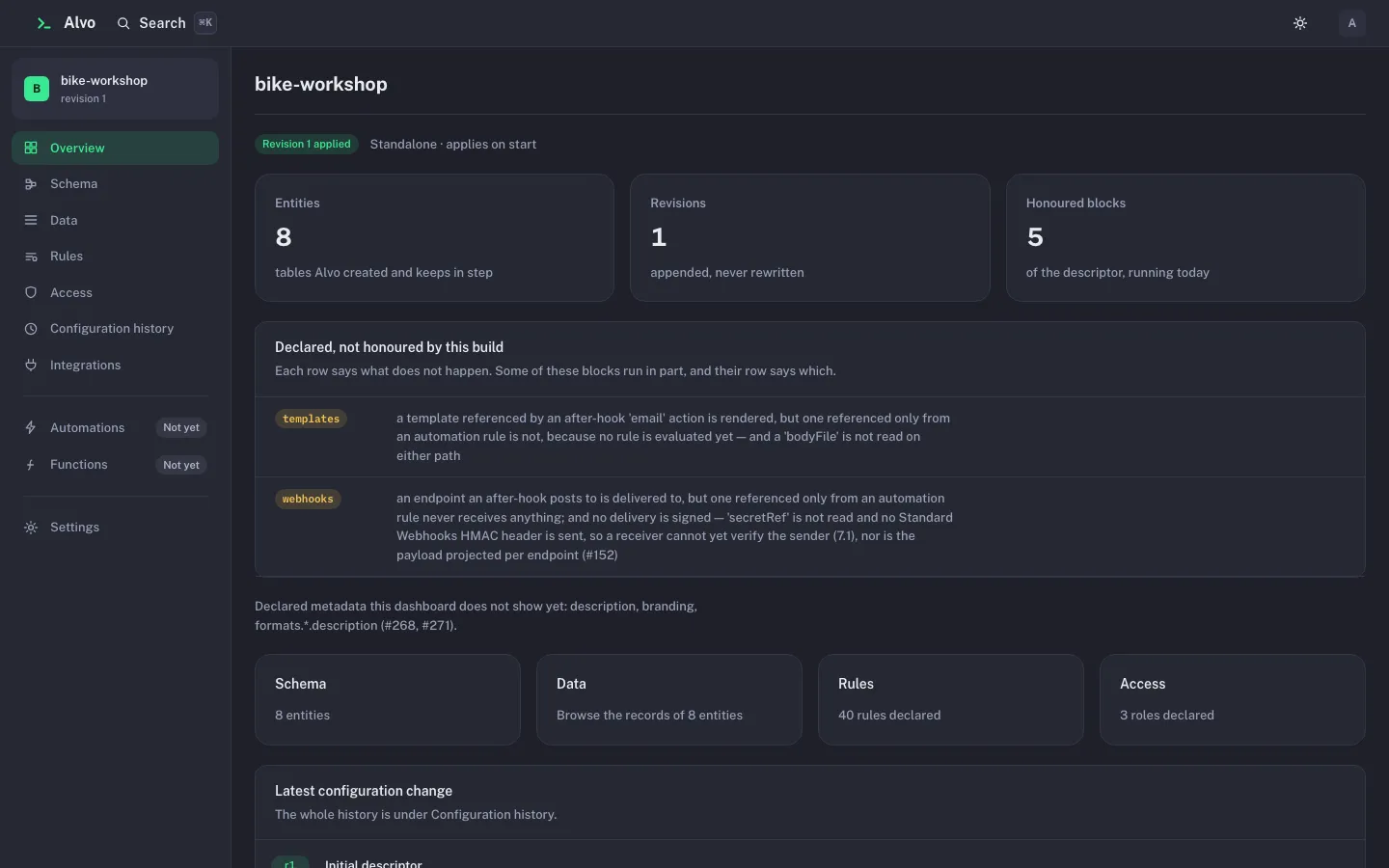
The panel Declared, not honoured by this build lists only the blocks your descriptor declares that this build parses and does not run, each with the framework’s own sentence for what does not happen. It is the same answer Capabilities in this build is generated from. Automations and Functions in the navigation carry a Not yet badge for the same reason.
3. Change the schema
Section titled “3. Change the schema”Schema lists the entities. Open one to see its tabs: Fields, Relationships, Rules, On write (the hooks), Indexes and API, the routes the Data API generates for it.
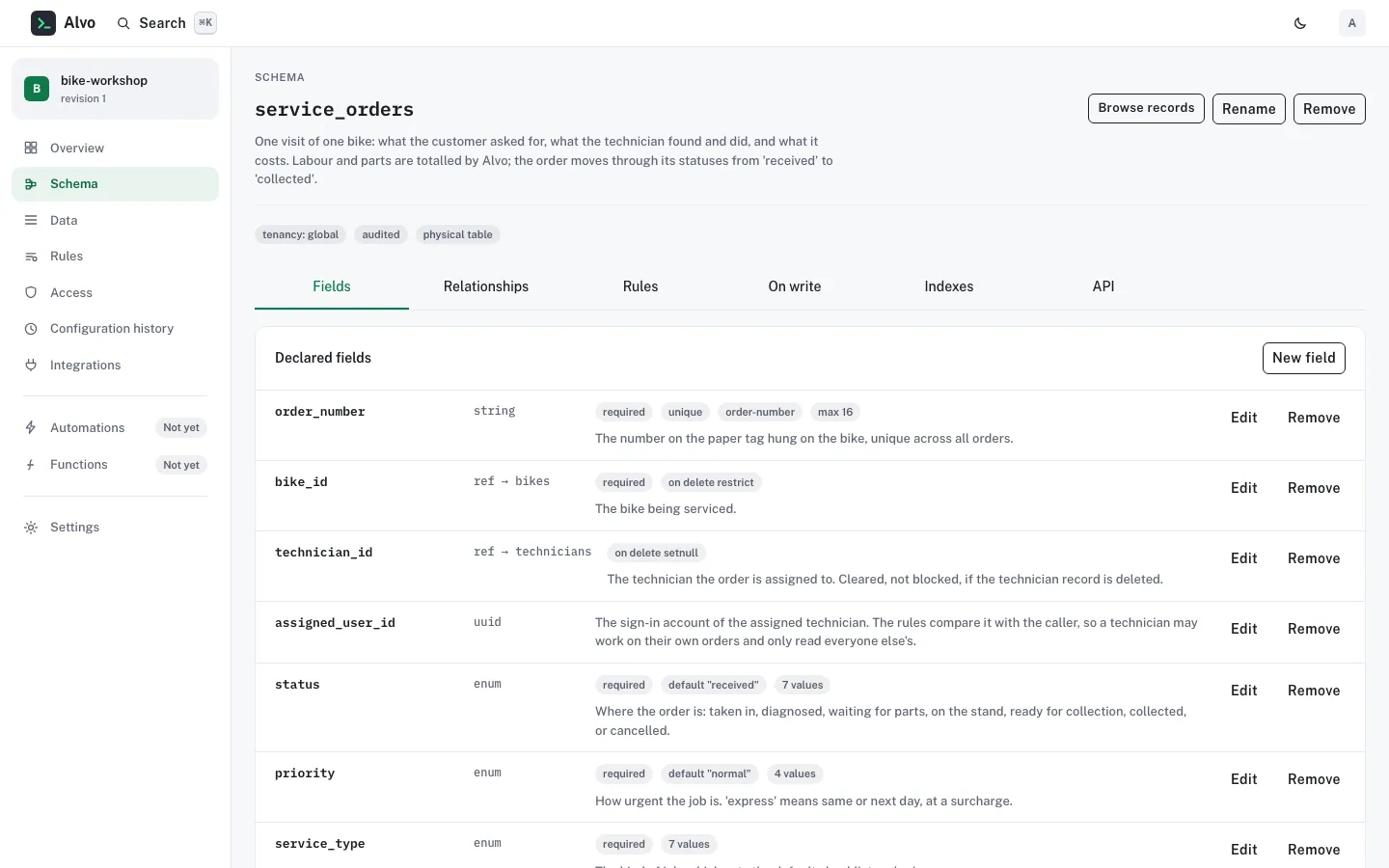
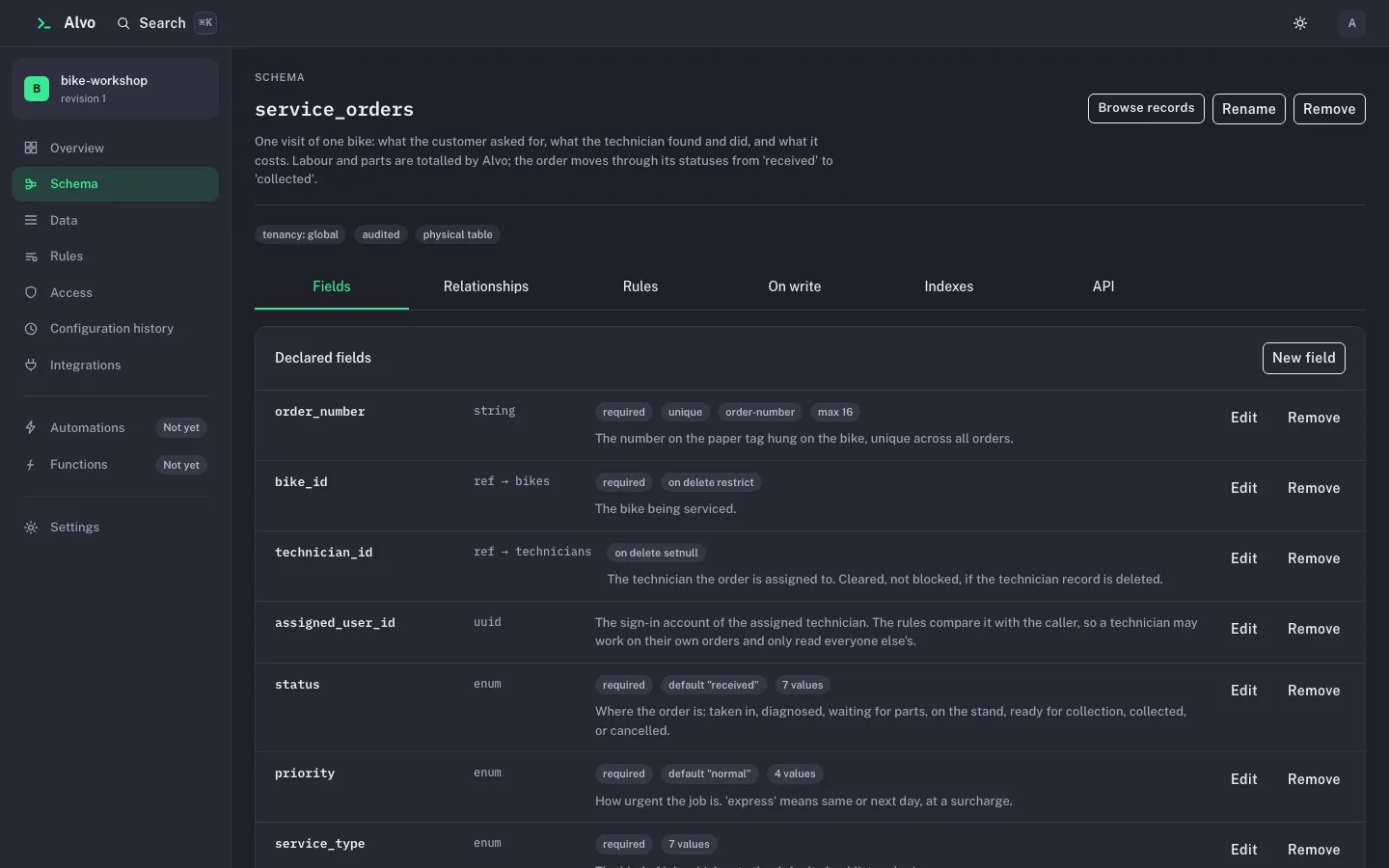
Every edit, here or on any other screen, goes into one working copy of the descriptor. Nothing changes in the database until you apply it. A bar shows how many changes are unapplied, and its action is always Preview changes:
- Preview shows the descriptor diff and the migration plan Alvo would run. A rules-only change has an empty plan, which means “no schema step”, not “nothing to apply”.
- Type the reason under Why. Configuration history shows it on the revision forever.
- Apply these changes applies against the revision you started from. If somebody applied first, yours is refused rather than written over theirs. A plan that destroys data asks you to type the project’s name first.
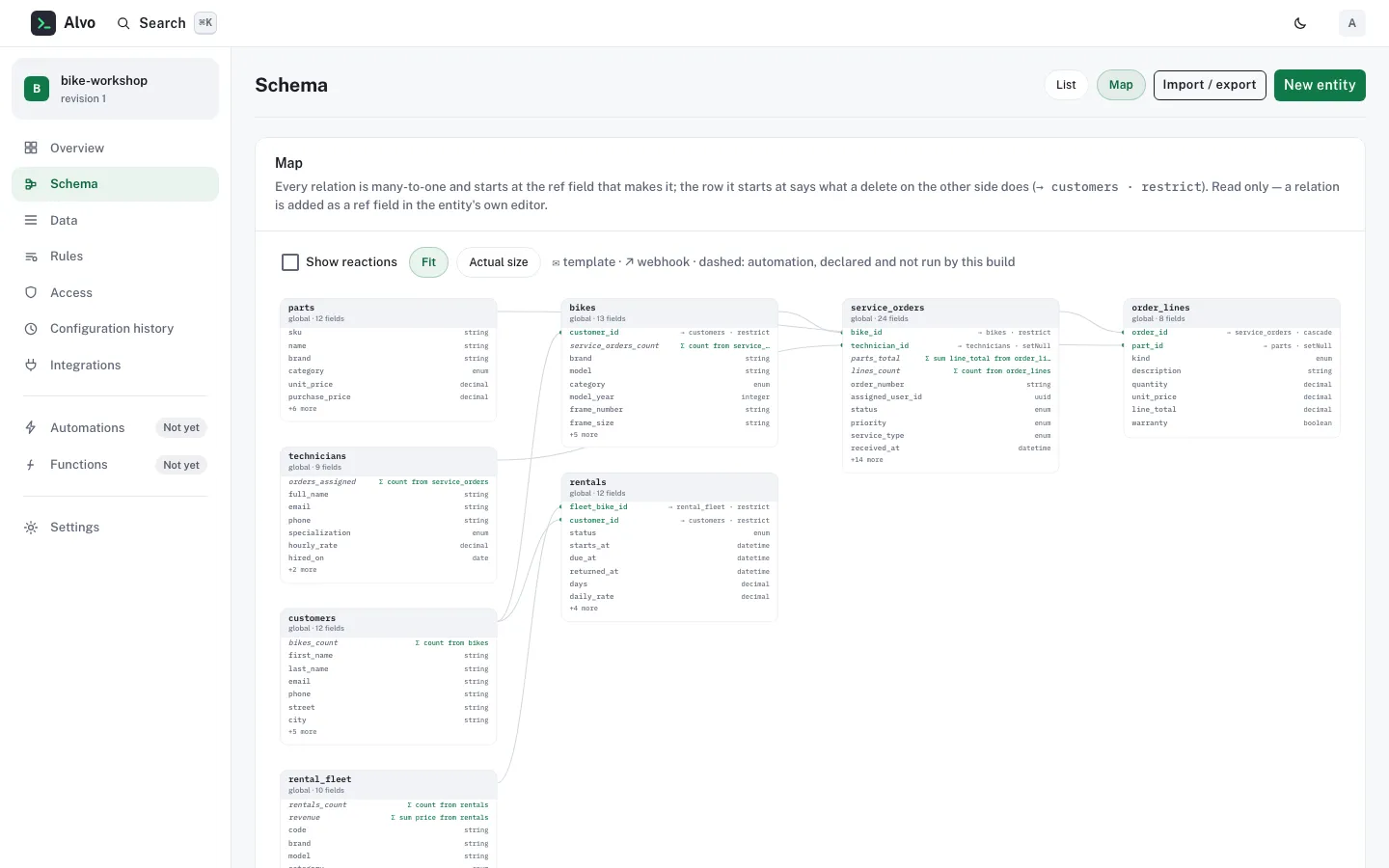
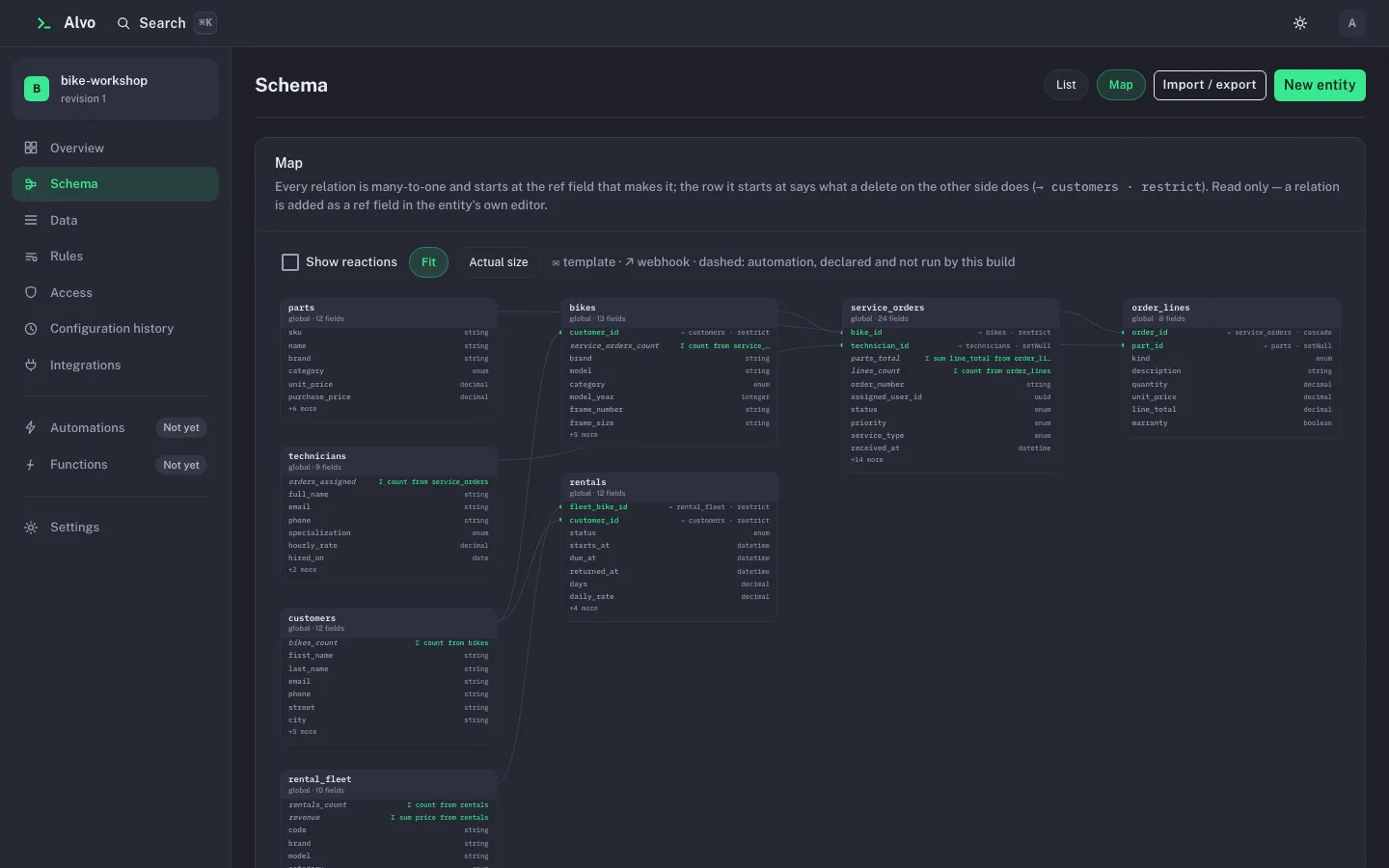
The Map view draws every entity and relation, read-only; a relation is added as a ref field in the entity’s own
editor. Import / export downloads the stored descriptor byte for byte, or loads a pasted one into the working copy,
where it goes through the same preview.
4. Edit rules and hooks, checked as you type
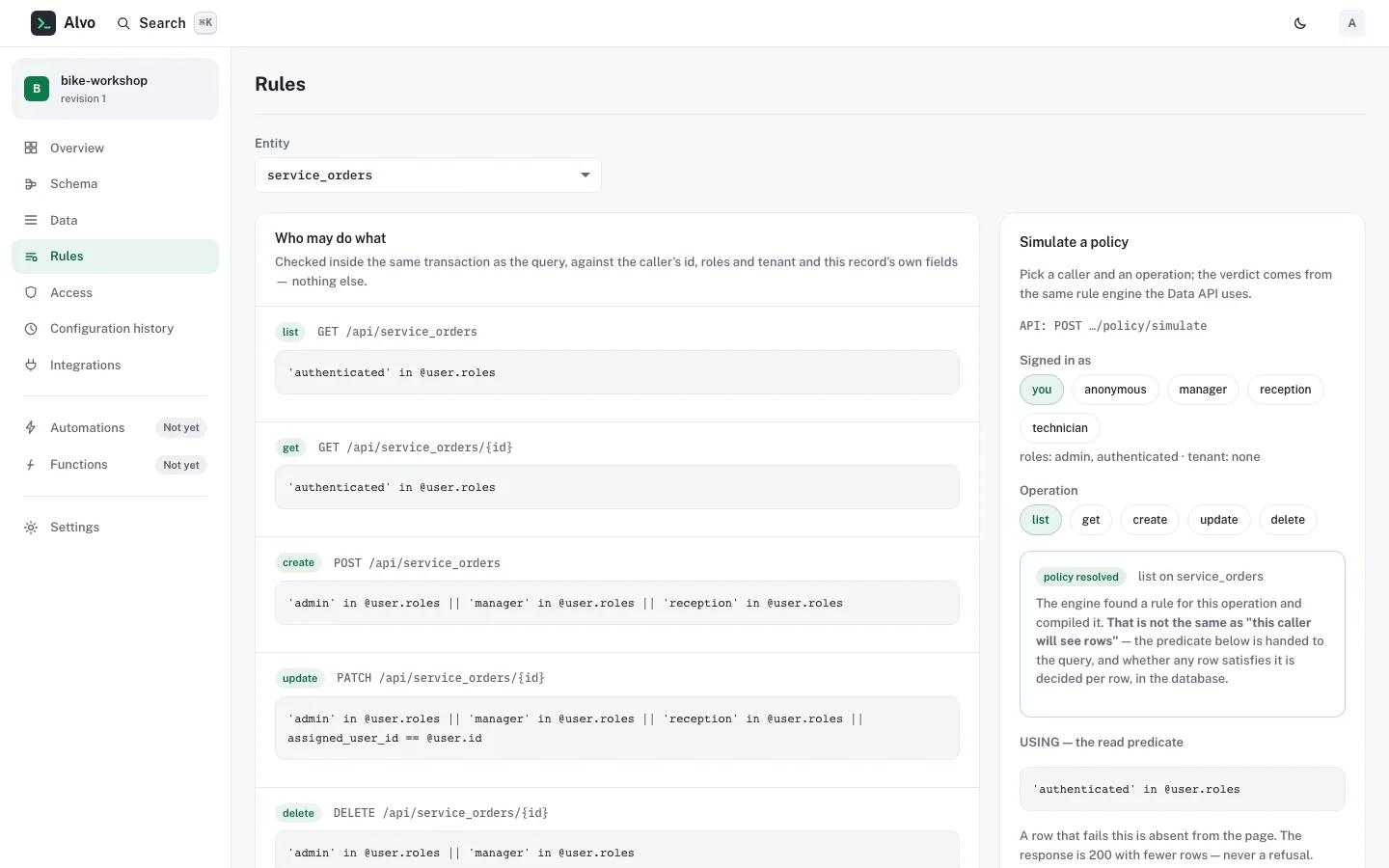
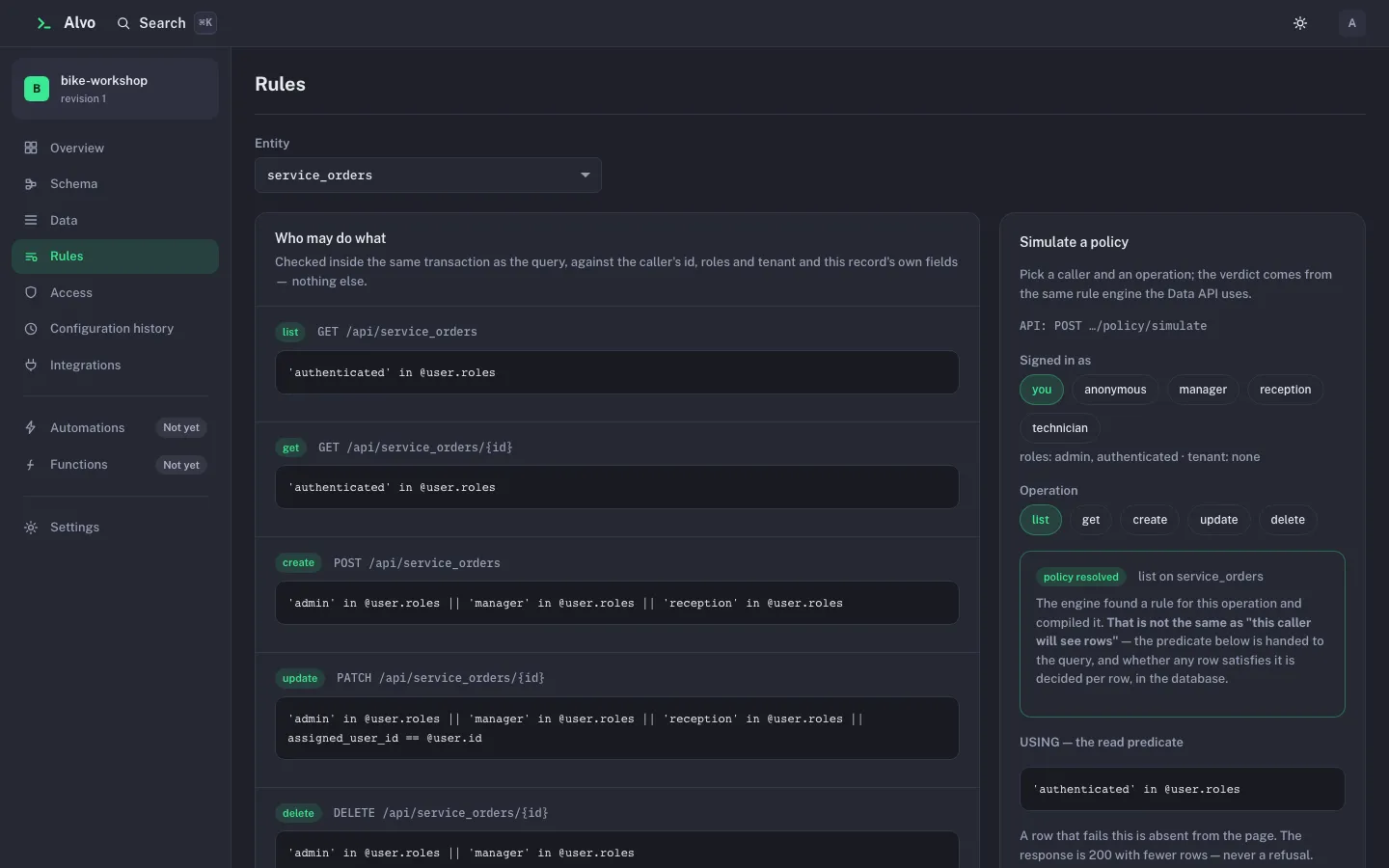
Section titled “4. Edit rules and hooks, checked as you type”Rules shows, per entity, the rule for each operation beside the route it guards, and a simulator.
Change a rule and pause: after about 300 milliseconds the dashboard asks the Management API’s cel/check what an
apply would say about exactly that expression, in exactly that place, and shows the answer under the box. A typo in a
role name is caught before you save, with the declared roles listed. The check needs the developer level; a
viewer sees the rules and the simulator only:
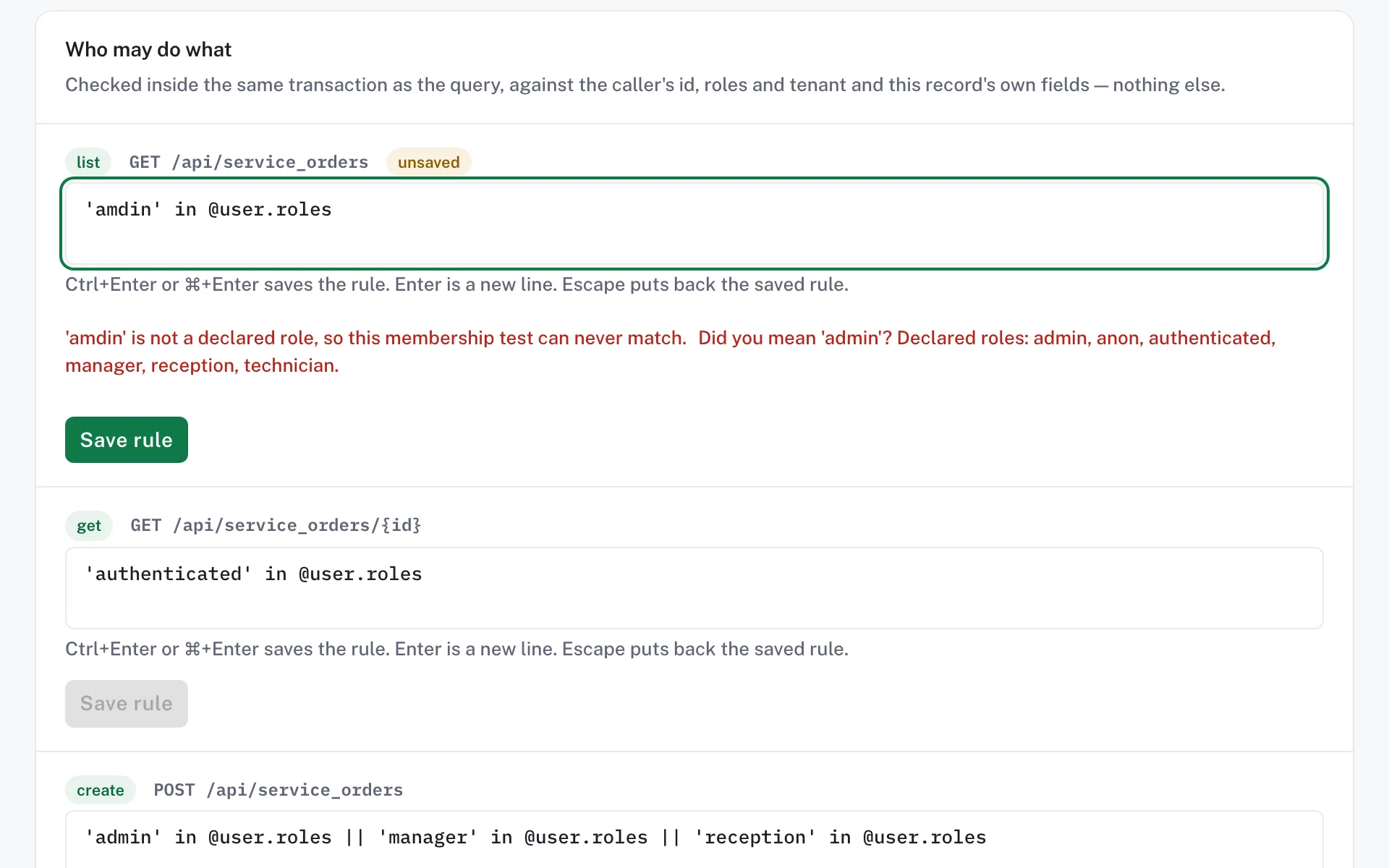
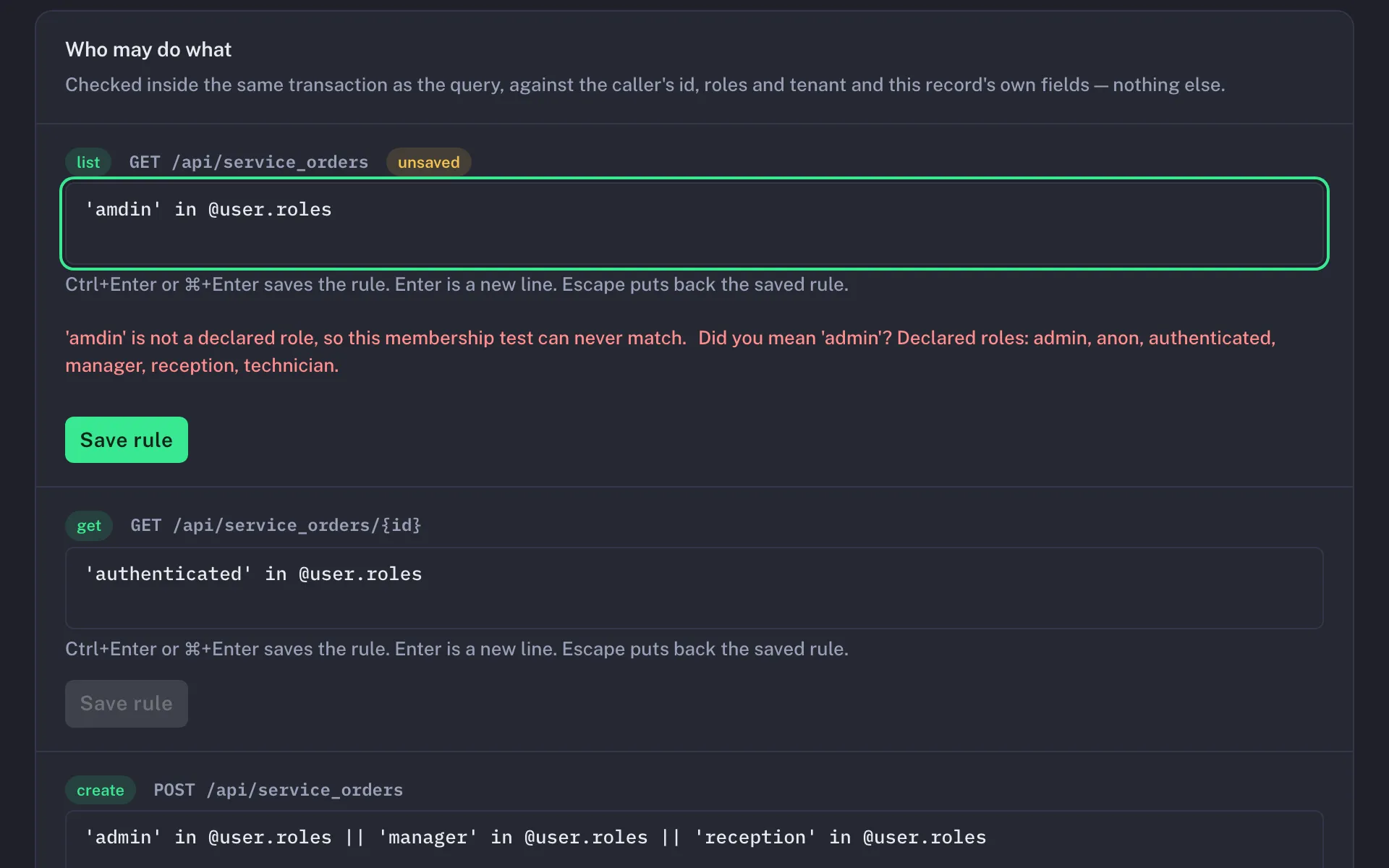
Save rule (or Ctrl+Enter, ⌘+Enter) puts the rule in the working copy; Escape puts back the saved one. The On
write tab edits the before-hooks and after-hooks with the same check on every condition and mutate value. The
simulator answers what the policy engine decides for a caller and an operation, from the same engine the Data API uses:
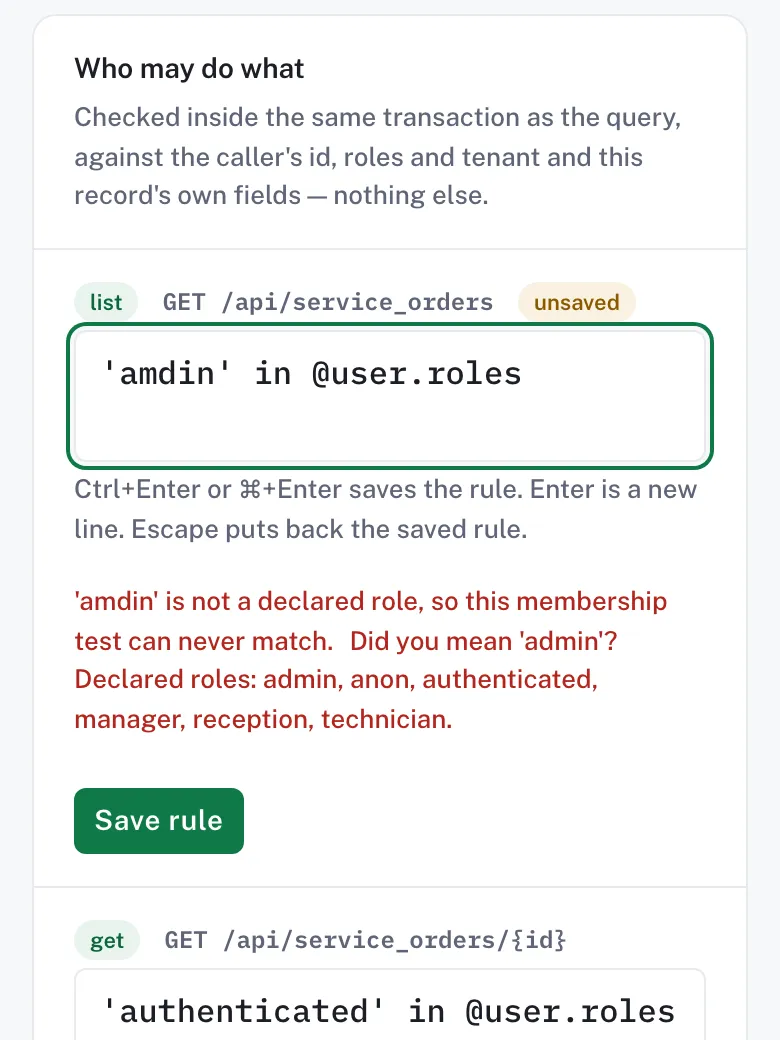
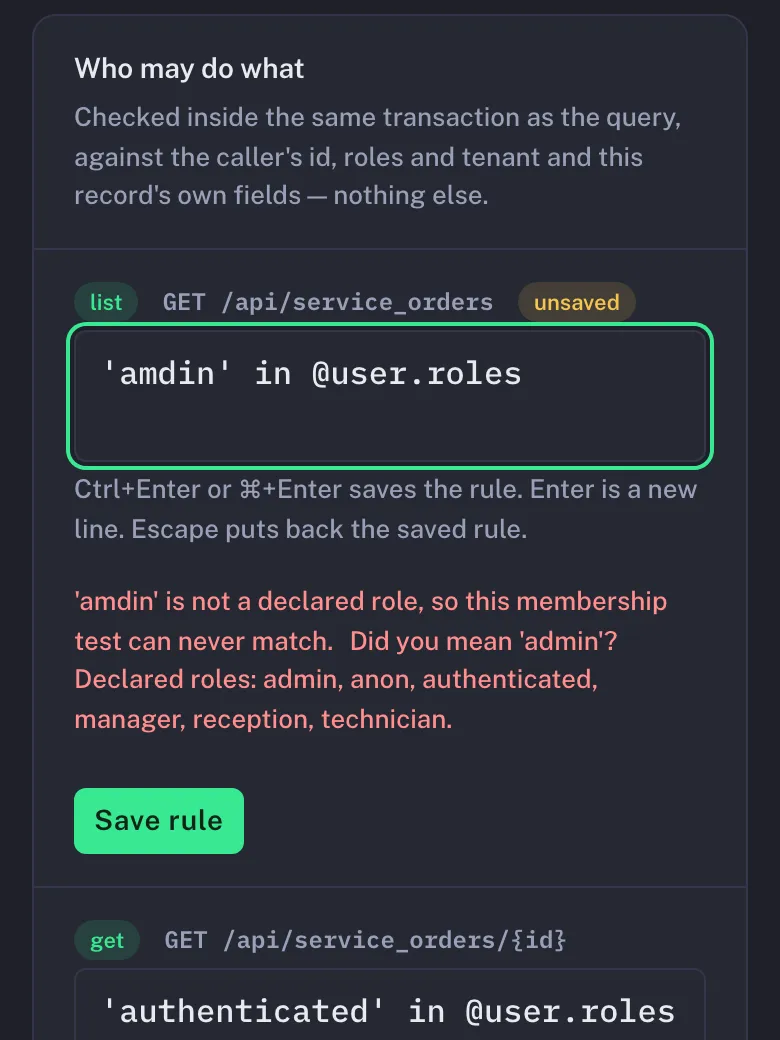
it hands back the predicate that will filter the rows, never a verdict on one row. Every screen works at phone width:
5. Browse the data as yourself
Section titled “5. Browse the data as yourself”Data lists the entities; open one to page, search, create, edit and delete records.
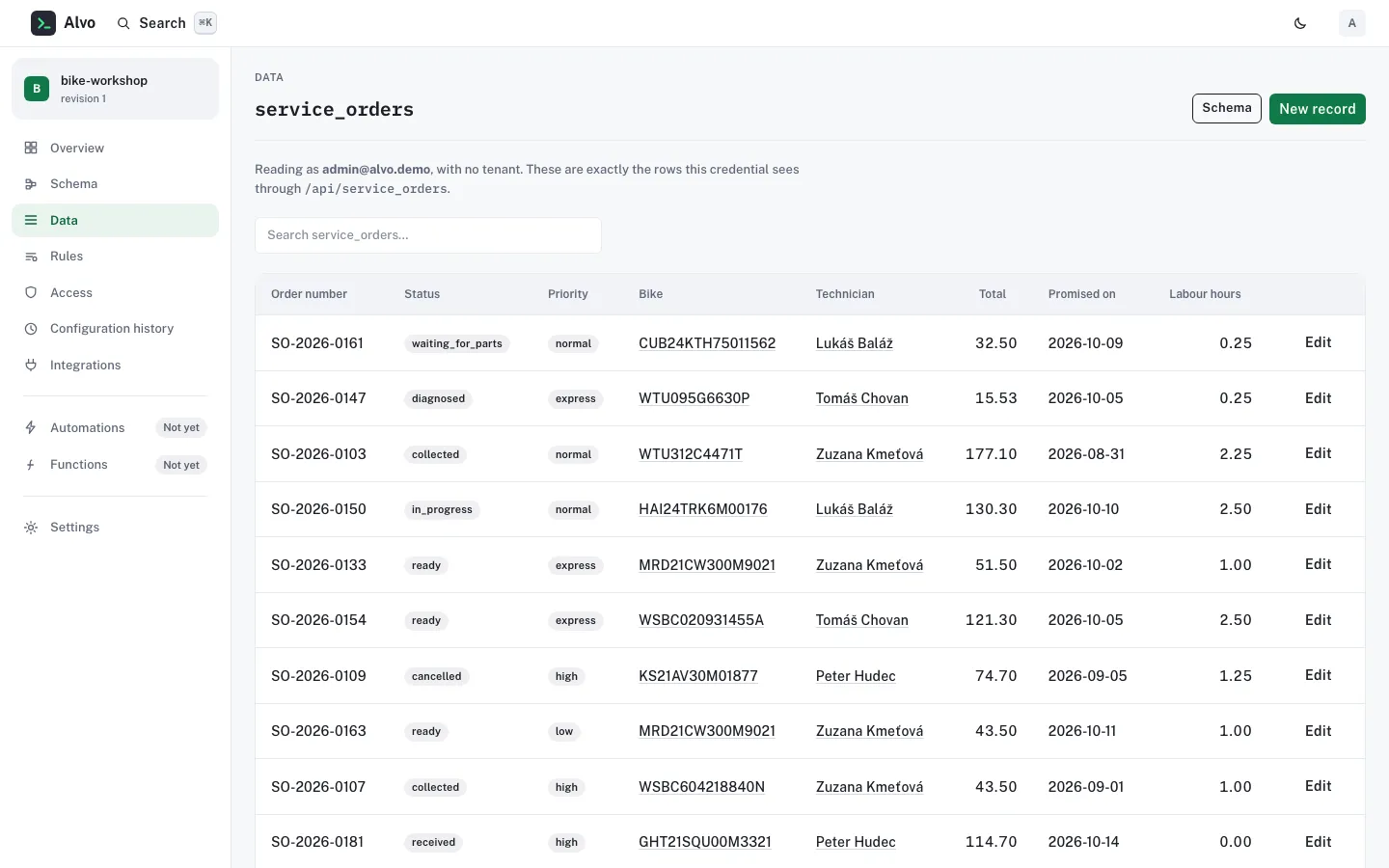
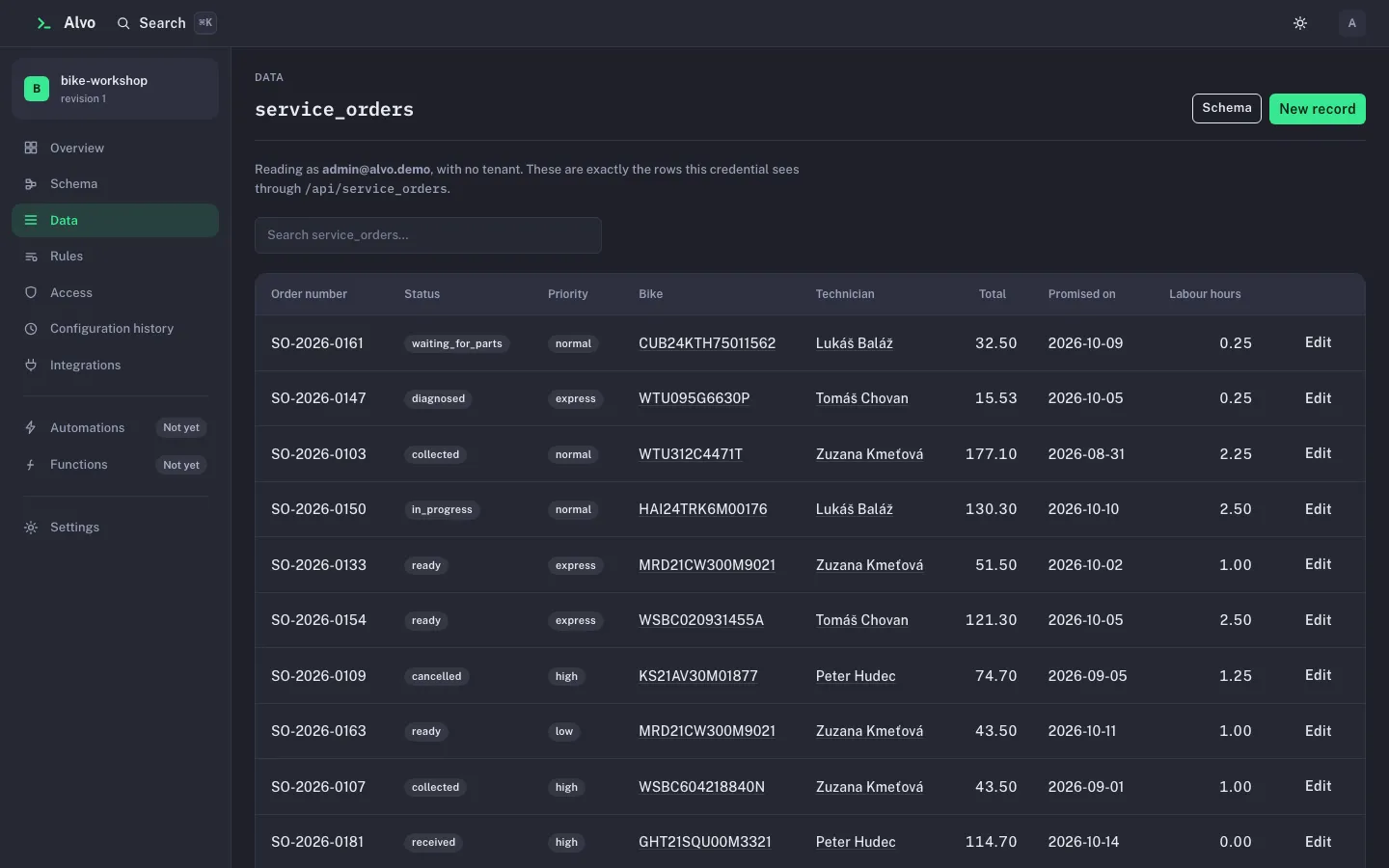
The browser reads through the ordinary Data API under your identity and your rules, so you see exactly the rows you would see over HTTP; there is no administrator bypass. A signed-in person acts in at most one tenant, set on Access. Without one, tenant-scoped entities are closed to you, and the screen says so.
6. Roll back a change
Section titled “6. Roll back a change”Configuration history lists every revision: who applied it, when, why, and what changed. Every apply appends one, and none is ever rewritten.
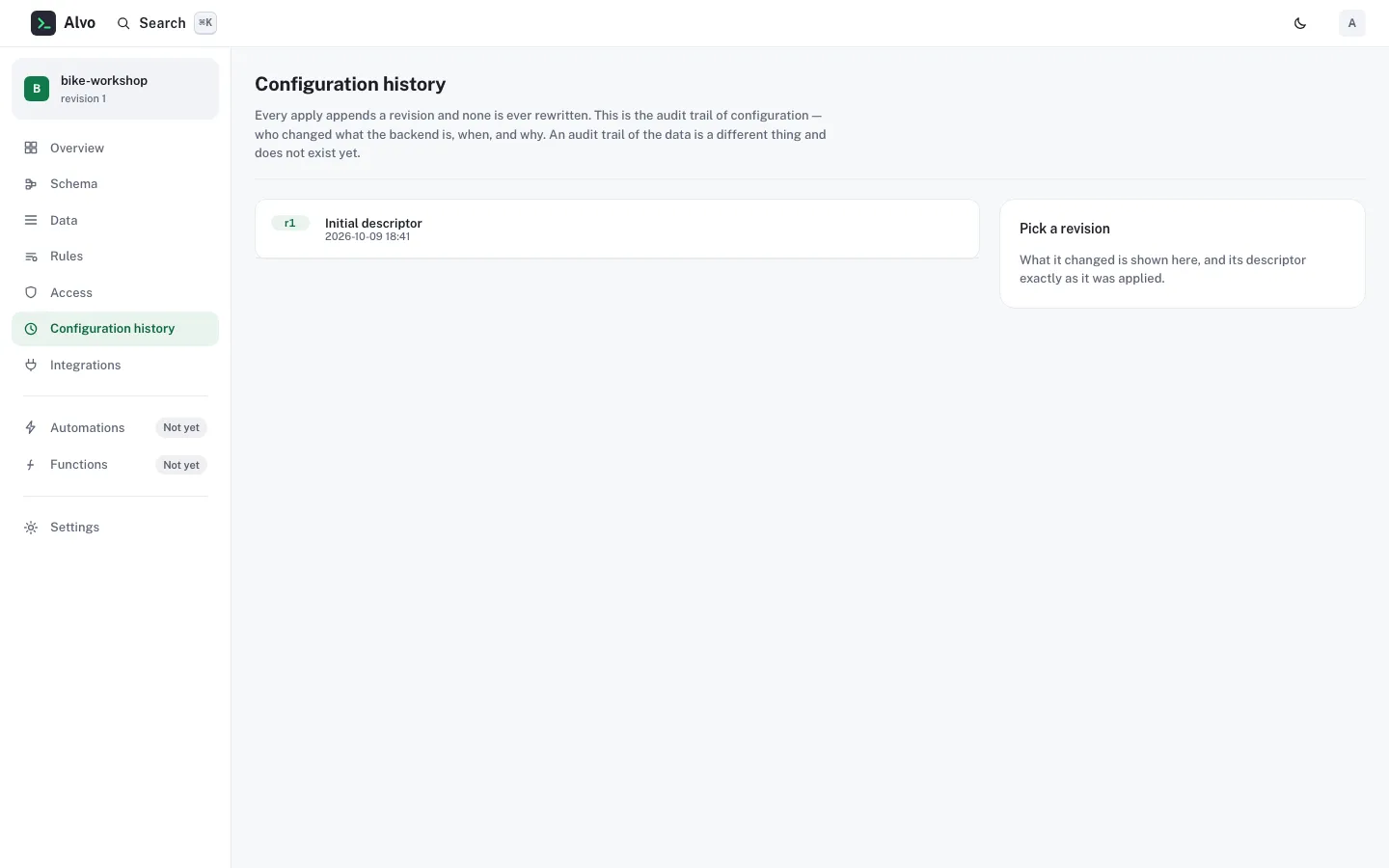
Select an older revision and choose Plan the rollback to see the reverse migration, then Roll back. A rollback always asks you to type the project’s name, because it replaces the whole configuration, and it warns when the reverse migration would discard data added since. It is appended as a new revision; nothing is erased. On a stack that serves a descriptor file, put the restored descriptor back in the file afterwards: Apply and evolve your descriptor explains why.
The other screens
Section titled “The other screens”- Access: people, their roles and their tenant, which take effect at once; and the role catalogue and the three management levels, which are part of the descriptor and wait for an apply. A role the descriptor does not declare is never given to a signed-in person, so assigning one does nothing. Locked accounts can be unlocked here.
- Integrations: the descriptor’s webhook endpoints and templates, beside what this build does not run for them.
- Settings: what is running and how it starts, where the API documentation is, and the schema assistant’s connection.
- Search (Ctrl+K, ⌘K) jumps to any screen or entity.
What can go wrong
Section titled “What can go wrong”The dashboard runs the Management API’s operations in process, so it refuses for the same reasons; the table names the problem type the same refusal carries over HTTP.
| Status | Problem type | When | Fix | Returned by |
|---|---|---|---|---|
| 403 | forbidden | Your roles reach no level the action needs, or a developer applies a change to access. | Ask an admin to grant the level, or to make the access change. | every host |
| 412 | precondition-failed | Somebody applied a revision after the one your working copy started from. | Start again from the new revision and redo your edits. | every host |
| 422 | validation | The working copy would not apply, for example an expression that does not compile. | Follow the refusal’s pointer and fix; the live check usually shows it before you save. | every host |
Reference
Section titled “Reference”- Management API: the operations every screen calls, and their levels.
- Descriptor keys:
access,auth. - Configuration:
Alvo:Admin,Alvo:Admin:Dashboard. - Problem types:
forbidden,precondition-failed,validation.
The schema assistant: describe a change in words and review the proposal the assistant checks for you.